Blackmagic Design DaVinci Resolve 19: The Ultimate Video Editing Test – Blackmagic Design DaVinci Resolve 19 The Ultimate Video Editing Test sets the stage for an exciting exploration into the world of professional video editing software. As an industry leader, DaVinci Resolve 19 has sparked significant interest due to its groundbreaking features and enhancements that cater to both novice and seasoned editors. This version not only simplifies the editing process but also elevates creativity through its advanced tools, making it an essential choice for filmmakers, content creators, and video professionals alike.
In this comprehensive overview, we’ll delve into the user interface, media management, editing techniques, audio capabilities, and more, providing valuable insights into how DaVinci Resolve 19 stands out in a competitive landscape.
Introduction to Blackmagic Design DaVinci Resolve 19: Blackmagic Design DaVinci Resolve 19: The Ultimate Video Editing Test
DaVinci Resolve 19 has emerged as a pivotal player in the video editing industry, solidifying Blackmagic Design’s reputation for providing powerful and accessible tools for creators of all levels. This latest iteration brings an array of enhancements that cater to the evolving needs of professionals while remaining user-friendly for beginners.
Key features of DaVinci Resolve 19 include advanced color grading tools, improved performance for editing high-resolution footage, and a streamlined user interface that enhances workflow efficiency. Compared to its predecessors, it introduces innovative functionalities like the Magic Mask for quick object isolation and a more intuitive Fairlight audio workspace. The software targets a wide audience, from independent filmmakers and YouTubers to seasoned professionals in the cinematic world, making it a versatile choice for various applications, including film editing, color correction, and audio post-production.
User Interface and Navigation
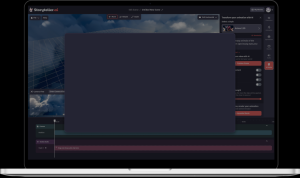
The layout of DaVinci Resolve 19’s interface is designed for both efficiency and ease of use. The workspace is divided into distinct sections: Media, Edit, Fusion, Color, Fairlight, and Deliver. Each section is equipped with specialized tools that cater to different aspects of video production.
To navigate this comprehensive interface effectively, users should familiarize themselves with keyboard shortcuts and the layout of each panel. Quick access to commonly used tools can significantly improve productivity. Below is a comparison table of DaVinci Resolve 19’s user interface elements with those of other popular video editing software:
| Feature | DaVinci Resolve 19 | Adobe Premiere Pro | Final Cut Pro |
|---|---|---|---|
| Timeline Editing | Multi-track timeline | Multi-track timeline | Magnetic timeline |
| Color Grading | Advanced color wheels and curves | Basic color correction tools | Color correction with Color Inspector |
| Audio Mixing | Integrated Fairlight Audio tools | Essential Sound panel | Audio effects library |
Importing and Organizing Media, Blackmagic Design DaVinci Resolve 19: The Ultimate Video Editing Test
Importing media into DaVinci Resolve 19 is straightforward, allowing users to easily bring in various file types, including video, audio, and image formats. The Import Media option can be accessed from the Media page, where multiple files can be selected simultaneously.
Organizing media in the Media Pool is crucial for maintaining an efficient workflow. Users can create bins to categorize files based on project needs or content type, making it easier to locate assets. Best practices for labeling and categorizing media assets include using descriptive names, adding metadata, and employing color coding for quick visual identification.
Video Editing Techniques
Basic editing techniques in DaVinci Resolve 19, such as cutting, trimming, and arranging clips on the timeline, are essential skills for any video editor. Users can easily use the blade tool for precise cuts and apply the trim tool for adjusting clip lengths.
Advanced editing techniques include multi-cam editing, which allows users to sync multiple angles of footage and switch between them in real-time, and speed adjustments for creating slow-motion or fast-paced effects. The following shortcuts can enhance the editing workflow:
- Ctrl + B: Blade tool
- Ctrl + T: Trim tool
- Ctrl + Z: Undo
- Shift + Z: Zoom to fit timeline
Color Grading and Correction
DaVinci Resolve 19 provides powerful tools for color grading and correction, positioning itself as an industry leader in this area. The software features advanced color wheels and curves that allow users to manipulate color properties with precision.
To achieve desired looks, users can utilize the color grading panel to adjust shadows, midtones, and highlights. A detailed example of a color grading project might illustrate a dramatic transformation—starting with flat, ungraded footage and ending with vibrant, cinematic visuals through the application of color grading techniques.
Audio Editing and Mixing
Audio is a critical component of video production, and DaVinci Resolve 19 includes robust audio tools in its Fairlight section. This suite allows users to edit, mix, and enhance audio tracks efficiently.
Performing audio mixing involves adjusting levels, panning tracks, and applying effects to create the desired soundscape. Below is a table showcasing various audio effects available within the software:
| Audio Effect | Description |
|---|---|
| Equalizer | Adjusts the frequency response of audio tracks. |
| Compressor | Controls the dynamic range of audio to ensure consistent levels. |
| Reverb | Adds space and depth to audio tracks. |
Exporting and Delivery
DaVinci Resolve 19 offers various export options tailored for different platforms. Users can choose from presets that optimize output for social media, broadcast, or film.
For different project types, such as social media videos or feature films, the best export settings can vary considerably. A checklist for finalizing a project before export should include confirming the timeline settings, checking audio levels, and ensuring all clips are rendered correctly.
- Verify project settings
- Check audio synchronization
- Export using the correct preset
- Review the final output
Tutorials and Learning Resources
To master DaVinci Resolve 19, a variety of tutorials are available online, covering everything from basic editing techniques to advanced color grading. Resources such as YouTube channels, dedicated websites, and online courses offer structured learning paths for users at all levels.
Engaging with online communities and forums can also be beneficial for users seeking help or sharing knowledge. Platforms like Reddit and specialized forums provide spaces for users to ask questions and share tips. Additionally, leveraging built-in resources within DaVinci Resolve, like the comprehensive user manual and video tutorials, can enhance the learning experience.