VMware Workstation Pro Virtualization Software is the ultimate solution for professionals seeking to optimize their computing environment. With its powerful features, this virtualization software allows users to run multiple operating systems on a single machine, enhancing productivity and flexibility in the workplace.
Designed for developers, IT professionals, and enterprises, VMware Workstation Pro provides seamless installation, robust resource management, and advanced networking capabilities, making it an essential tool for modern virtualization needs.
Overview of VMware Workstation Pro
VMware Workstation Pro is a powerful desktop virtualization software that enables users to run multiple operating systems on a single physical machine. Designed for IT professionals and developers, it offers an array of features that enhance productivity and streamline workflows.
Key features of VMware Workstation Pro include support for DirectX 10 and OpenGL 3.3, the ability to create linked clones, and advanced snapshot management. The software allows users to test software applications in isolated environments, and seamlessly integrate with cloud services.
System Requirements for Installation
Before installing VMware Workstation Pro, ensure your system meets the following requirements:
- Processor: 64-bit x86 Intel or AMD processor with VT-x or AMD-V capability.
- Memory: Minimum 4 GB RAM; 8 GB or more recommended.
- Storage: At least 1.5 GB of free disk space for installation; additional space required for virtual machines.
- Operating System: Windows or Linux host OS; specific version requirements should be checked in the official documentation.
The benefits of using virtualization software in a professional environment include cost savings through reduced hardware expenses, improved resource utilization, and enhanced testing capabilities, thus enabling faster deployment of applications.
Installation Process
Installing VMware Workstation Pro is straightforward and can be completed in a few steps.
Step-by-Step Guide on Installation
1. Download the latest version of VMware Workstation Pro from the official VMware website.
2. Double-click the downloaded file to launch the installer.
3. Follow the on-screen prompts to accept the license agreement and choose the installation directory.
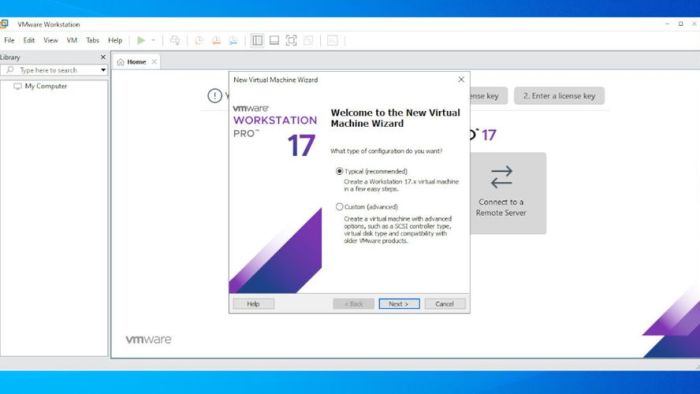
4. Choose the setup type: Typical or Custom, and configure additional options as required.
5. Complete the installation and restart your computer if prompted.
Prerequisites Before Installation
Ensure that you have administrative privileges on your machine and that your antivirus software is temporarily disabled to avoid conflicts during the installation.
Common Issues and Solutions
During installation, users may encounter issues such as compatibility errors or installation failures. The following solutions can help:
- Ensure your operating system is updated to the latest version.
- Check for existing virtualization solutions that may conflict with VMware Workstation Pro.
- Review log files to identify specific error messages and consult VMware’s knowledge base for troubleshooting steps.
Creating Virtual Machines
Creating a virtual machine in VMware Workstation Pro allows users to run different operating systems simultaneously.
Process of Creating a New Virtual Machine
To create a new virtual machine, follow these steps:
1. Launch VMware Workstation Pro.
2. Select “Create a New Virtual Machine” from the home screen.
3. Choose the type of configuration: Typical or Custom.
4. Select the installation media for the operating system (CD/DVD or ISO file).
5. Configure the virtual machine settings, including CPU, memory, and disk size.
Choosing the Right Operating System
Consider the purpose of the virtual machine when selecting an operating system. For development and testing, lightweight systems such as Linux distributions may be suitable, while Windows is preferable for applications that require Microsoft environments.
Configuration Options
When setting up a virtual machine, users can customize various options, including:
- Virtual hardware settings such as CPU count and memory allocation.
- Network adapter settings for internet connectivity.
- Disk options including type (thick or thin provisioned) and size.
Managing Virtual Machines: VMware Workstation Pro Virtualization Software
Efficient management of virtual machines is key to maximizing productivity in VMware Workstation Pro.
Methods for Managing Multiple Virtual Machines, VMware Workstation Pro Virtualization Software
Utilize features such as the “VMware Workstation Library” to organize and easily access your virtual machines. Group related VMs in folders for better management.
Allocating Resources
Resource allocation can be adjusted through the virtual machine settings, allowing users to specify dedicated CPU and memory resources to each VM based on their usage needs.
Snapshots and Cloning
Taking snapshots allows users to save the state of a virtual machine at a specific point in time. Cloning creates an exact copy, which can be useful for testing or resource management.
Networking in VMware Workstation Pro
VMware Workstation Pro offers versatile networking options for virtual machines.
Networking Options
Users can choose from several networking configurations:
- Bridged: Connects the VM to the physical network directly.
- NAT: Allows VMs to access external networks while hiding their IP addresses.
- Host-only: Creates a private network between the VM and the host machine.
Configuring Network Settings
To configure network settings for virtual machines, navigate to the VM settings and select the “Network Adapter” option to choose the desired networking mode.
Common Networking Scenarios
In a bridged network scenario, VMs operate as individual devices on the same network as the host. In a NAT setup, multiple VMs can share a single IP address to access the internet, which enhances security and simplifies network management.
Advanced Features
VMware Workstation Pro includes advanced features that enhance its functionality.
Advanced Features Overview
Features such as linked clones allow users to save disk space and time when creating multiple virtual machines. Virtual networking enables complex networking setups that mimic production environments.
Integration with Other VMware Products
VMware Workstation Pro can be integrated seamlessly with VMware vSphere, allowing for streamlined migration of virtual machines between desktop and cloud environments.
Testing and Development Environments
Utilizing VMware Workstation Pro in testing and development allows teams to replicate production environments without the need for additional hardware, thus speeding up software development cycles.
Troubleshooting Common Issues
Users may encounter various issues while using VMware Workstation Pro.
Common Issues and Solutions
Some common problems include VM performance issues and hardware compatibility errors. The following steps can help resolve these:
- Ensure that virtualization is enabled in the BIOS settings.
- Update VMware Tools within the virtual machines for improved performance.
- Check system resource allocation and adjust settings as necessary.
Resources for Additional Help
For further assistance, users can access the VMware community forums, knowledge base articles, or contact VMware support for expert guidance.
Use Cases
VMware Workstation Pro is widely used across multiple industries for various purposes.
Industry Use Cases
In the IT sector, VMware Workstation Pro is leveraged for software testing and development. In education, it provides students with hands-on experience with different operating systems without the need for multiple physical machines.
Successful Implementations
Organizations have successfully implemented VMware Workstation Pro to reduce hardware costs and speed up development cycles. Many companies report improved collaboration and efficiency due to the seamless environment it provides.
Cost Benefits of Virtualization
The cost benefits of using VMware Workstation Pro in business operations include reduced hardware expenses, lower energy costs, and improved resource utilization, leading to greater ROI on technology investments.